


















Download and Validate a File with curl
Learn a safe curl download workflow: save to a temporary file, follow redirects, fail on HTTP errors, inspect Content-Type and length, verify checksums, resume carefully, and reject unexpected content.
 Written byYiyao

Download a file with curl by choosing a local filename, checking the response and validating the saved content. A completed transfer should leave the expected file, not a login page or an error document.
Save a known public page
This example saves the public example.com page as example.html:
curl --fail --location --show-error --silent --max-time 30 --output example.html https://example.com/
In Windows PowerShell, use curl.exe if the shell's curl name is an alias. Run the command in the directory where the file should be written, and choose a filename that will not overwrite needed work.
Know what each option contributes
| Option | Purpose |
|---|---|
| --output | Choose the local filename |
| --location | Follow HTTP redirects |
| --fail | Treat HTTP error status responses as failures |
| --max-time | Bound the overall transfer time |
| --show-error --silent | Hide the progress meter while retaining errors |
Check the downloaded content
Inspect the file's type, size and expected structure. For HTML, check the title and body. For a dataset, check headers and row counts. A server can return a login or error message with status 200, so the content check remains important.
Use separate checks for transfer status and file suitability. Record the final response location, confirm the expected content type where available, then open or parse the file using the application that will consume it. A filename ending in .csv does not establish that the saved content is CSV.
| Observation | Interpretation | Action |
|---|---|---|
| Command reports an HTTP error | The transfer did not meet the requested success condition | Inspect the status and response |
| File contains a sign-in page | The saved response is not the intended export | Review the authorized download flow |
| CSV headers differ from the agreed schema | Transfer worked; content needs review | Stop downstream import and compare the export version |
| Published checksum does not match | The file differs from the expected artifact | Recheck the source and download before using it |
Keep transfer and validation separate
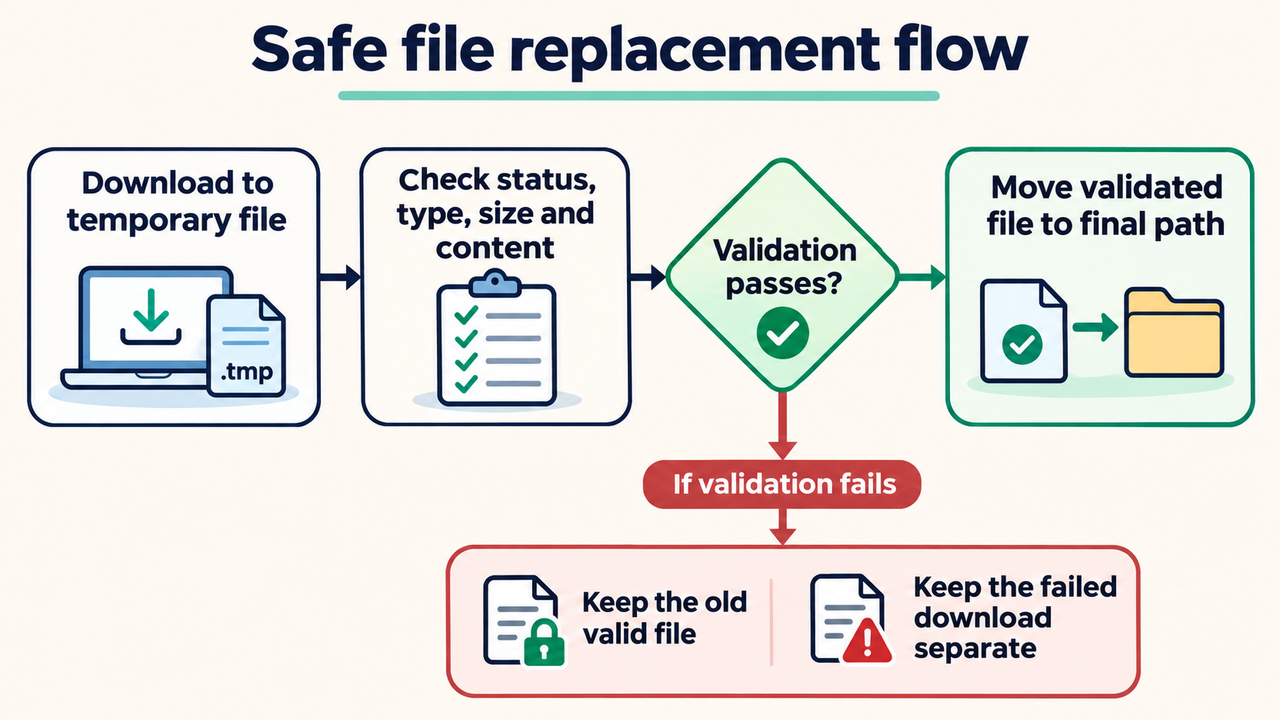
For an automated workflow, download to a temporary filename first. Validate the content, then move it to the final location. Preserve the earlier valid file until the new download passes its checks.
Resume only when the source supports it
The --continue-at - option can request continuation from an existing file size. Use it only when the server supports range requests and the source is the same file. If the source changed, restart into a new temporary file and validate it.
Example: accept a CSV export
After downloading, check that the first row matches the expected columns and the row count is plausible for the request. Inspect several records and any stated checksum. Keep the source URL and retrieval time with the file so later differences can be investigated.
For an illustrative export handover, agree that the file must contain record_id, source_url and title, with one data row per source record. Download to a temporary filename, parse the header, and check a known first and last record before moving it into the import location.
Keep failed or incomplete downloads separate from accepted files. If a transfer is resumed, check that the source artifact is the same version and that the server supports the relevant range request. Repeat the content checks after the resumed transfer completes. This avoids importing a file merely because it exists on disk or because the last network attempt ended without an error.
FAQ
Why did I download HTML instead of data? Check redirects, authentication and the final response content.
Does curl execute the downloaded file? Saving content and running it are separate actions. Review files before opening them with a program that can execute content.
Reference: curl command manual.
Continue with the right workflow
Convert JSON to CSV with a Clear Field Mapping · Send a POST Request with curl · Website Crawler Tasks in One Console · Explore Crawler Console